
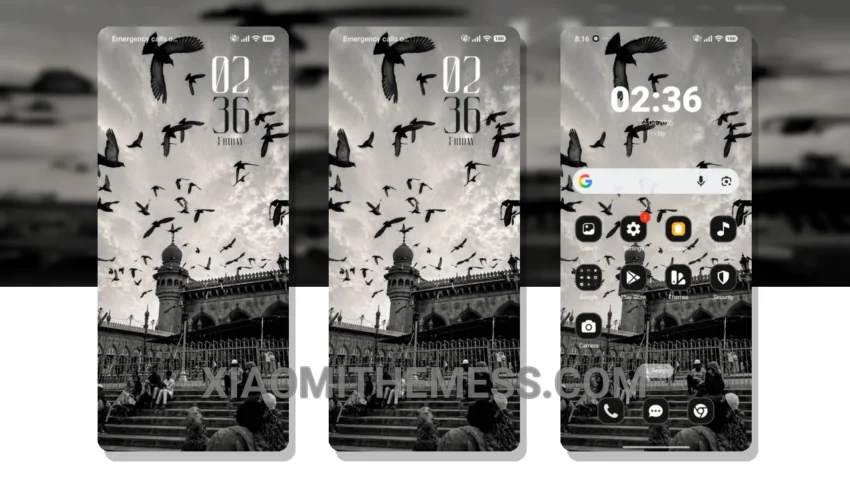
Dark mode just got a whole lot better. Monochrome is a great xiaomi theme that offers a unique twist on the traditional dark mode theme. With its elegant design and clean interface, this theme is perfect for those who want a premium UI without the hassle of complicated customization.
What really stands out is the theme’s ability to provide a lag-free experience, thanks to its lightweight design and system optimization. This means that you can enjoy a smooth and seamless user experience without any performance issues.
Compatibility and Features
The Monochrome theme is fully compatible with HyperOS, MIUI 12, MIUI 13, and MIUI 14. This means that you can use the theme on a variety of devices without any issues. Additionally, the theme supports android customization, including custom control center, redesigned status bar, and advanced widgets.
However, one caveat of the Monochrome theme is that it may not be suitable for those who prefer a more vibrant and colorful UI. The theme’s dark mode design may not appeal to everyone, and some users may find it too minimalist.
Despite this, the Monochrome theme is a great option for those who want a reliable and elegant UI. With its battery saver UI and dark mode optimization, this theme is perfect for those who want to reduce battery drain and enjoy a smooth user experience.
In my testing, I found the Monochrome theme to be a great addition to my device. The theme’s unique twist on the traditional dark mode theme and its lightweight design make it a must-have for anyone who wants a premium UI without the hassle of complicated customization.
Theme Information
🛠️ How to Install This MTZ Theme
- Download the MTZ file to your device.
- Open the official Themes app and go to your profile.
- Import & Apply the downloaded file.