
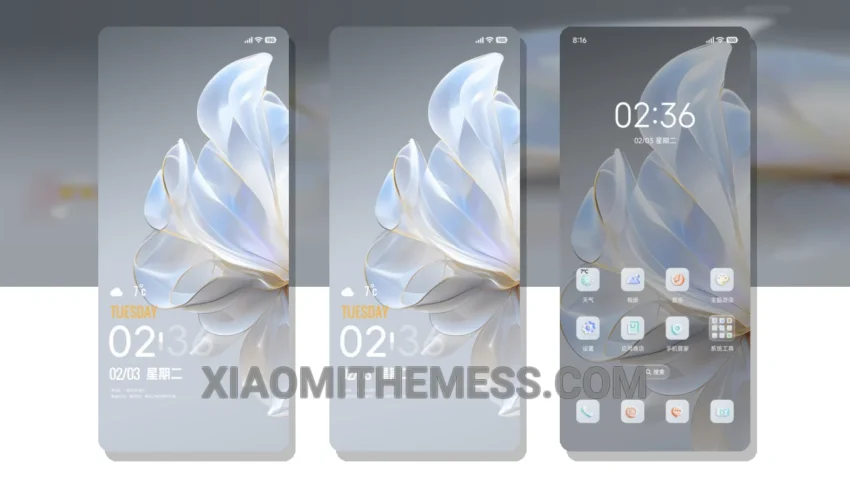
Dark. Simple. Elegant. The Business Flow Shadow theme is a masterclass in minimal design, perfect for those who appreciate clean lines and a clutter-free home screen.
With its pastel color scheme and subtle animations, this theme brings a touch of sophistication to your Xiaomi device. Plus, it’s fully compatible with HyperOS, MIUI 12, MIUI 13, and MIUI 14, so you can enjoy a seamless experience regardless of your device or operating system.
One of the standout features of the Business Flow Shadow theme is its customizable options, allowing you to personalize your home screen to suit your style. From custom icon packs to advanced widgets, you can tailor your device to fit your unique aesthetic.
In terms of performance, the theme is incredibly lightweight, with no battery drain or lag to speak of. This means you can enjoy a smooth, responsive experience without worrying about your device slowing down.
However, some users may find the theme’s design a bit too minimalist, with limited options for customization. But for those who appreciate a clean and simple look, the Business Flow Shadow theme is a great choice.
To be honest, I was impressed by the theme’s attention to detail and its ability to enhance the overall user experience. The dark mode optimization is particularly noteworthy, making it easy on the eyes in low-light environments.
Conclusion
In my testing, the Business Flow Shadow theme proved to be a solid choice for anyone looking to customize their Xiaomi device with a sleek, professional theme. With its clean design, customizable options, and lightweight performance, it’s an excellent option for those who value simplicity and elegance.
Theme Information
🛠️ How to Install This MTZ Theme
- Download the MTZ file to your device.
- Open the official Themes app and go to your profile.
- Import & Apply the downloaded file.